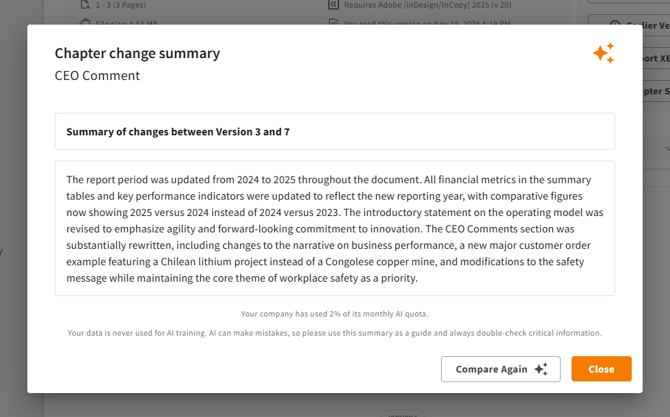
Starting in our December release we will be offering our first initiative into Generative AI, branded as CtrlPrint Intelligent Features.
Our first feature is called Chapter Change Summary. It allows users to select two versions of a chapter and instantly generate an AI-powered summary of material changes, turning a task that could take hours of manual reading into a process that takes seconds.
All of our AI features will be set at the company level and you must be a company administrator to activate them. Once activated, they will be available to all users and on all projects.
Activation
To activate this feature you will first need to log in as an administrator. (Company level administrative permissions are required.) Choose the company, and then, in the list of extra features on the right side of the page, click on the option for "Intelligent features."
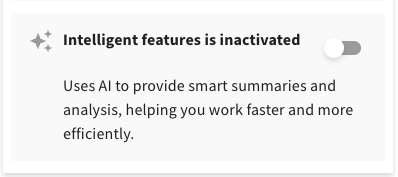
After toggling the function on you will need to agree to the usage and data processing notice:
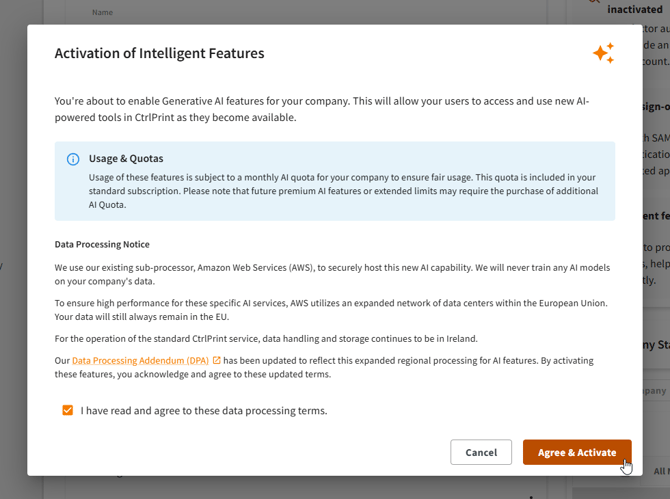
After clicking "Agree & Activate" the functionality will be available to all users with access to projects listed under this company. (For additional questions about pricing please, contact your sales representative.)
Using Chapter Changes Summary
To use the function, navigate to page for the chapter you want to create a change summary for and click on the "Change Summary" button.
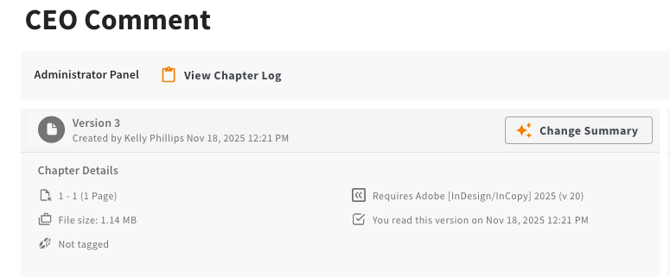
Now select the versions you want to compare. (You can for example compare just the two latest versions, or compare two versions where more time has passed.)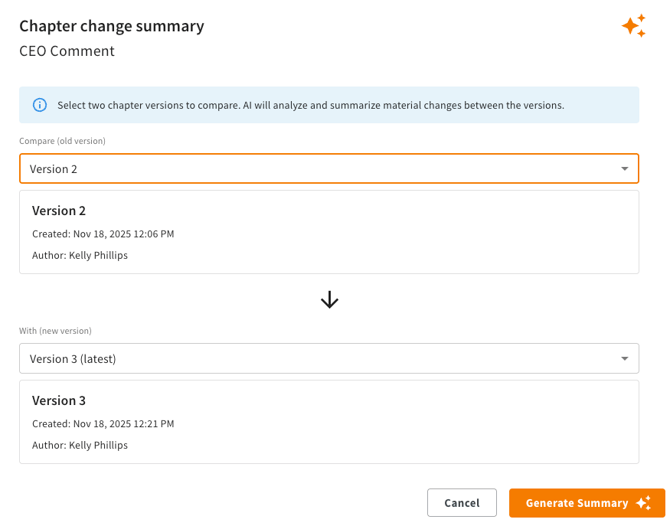
Then click the "Generate Summary". After a few moments a summary of the difference will appear!